How to Use PKForge: PKHeX for Android, Set Up Step by Step
How to use PKForge, the PKHeX-based save editor for Android: install it safely, link RetroArch, melonDS, Azahar or Eden saves, and move Pokémon between games.
 tutorials
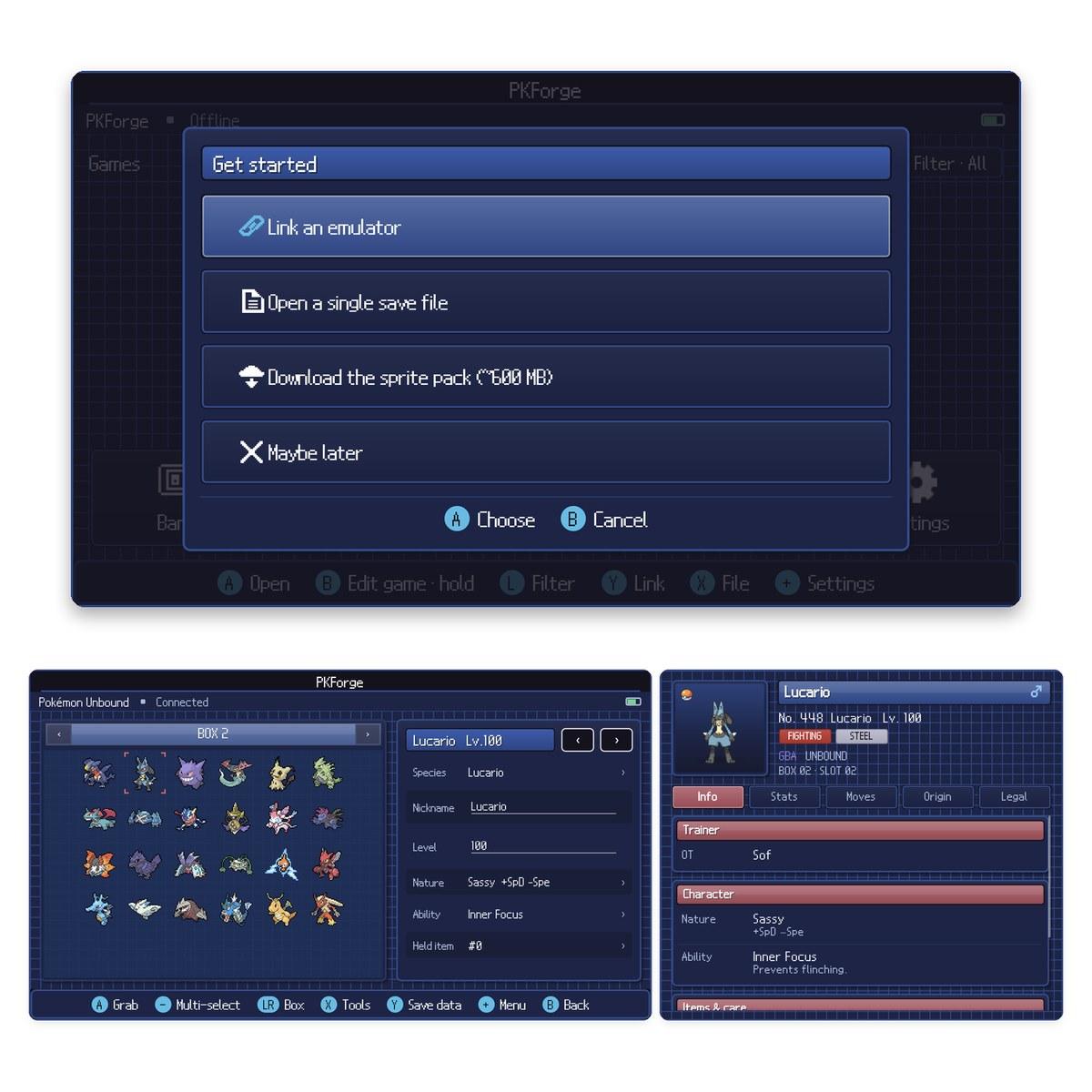
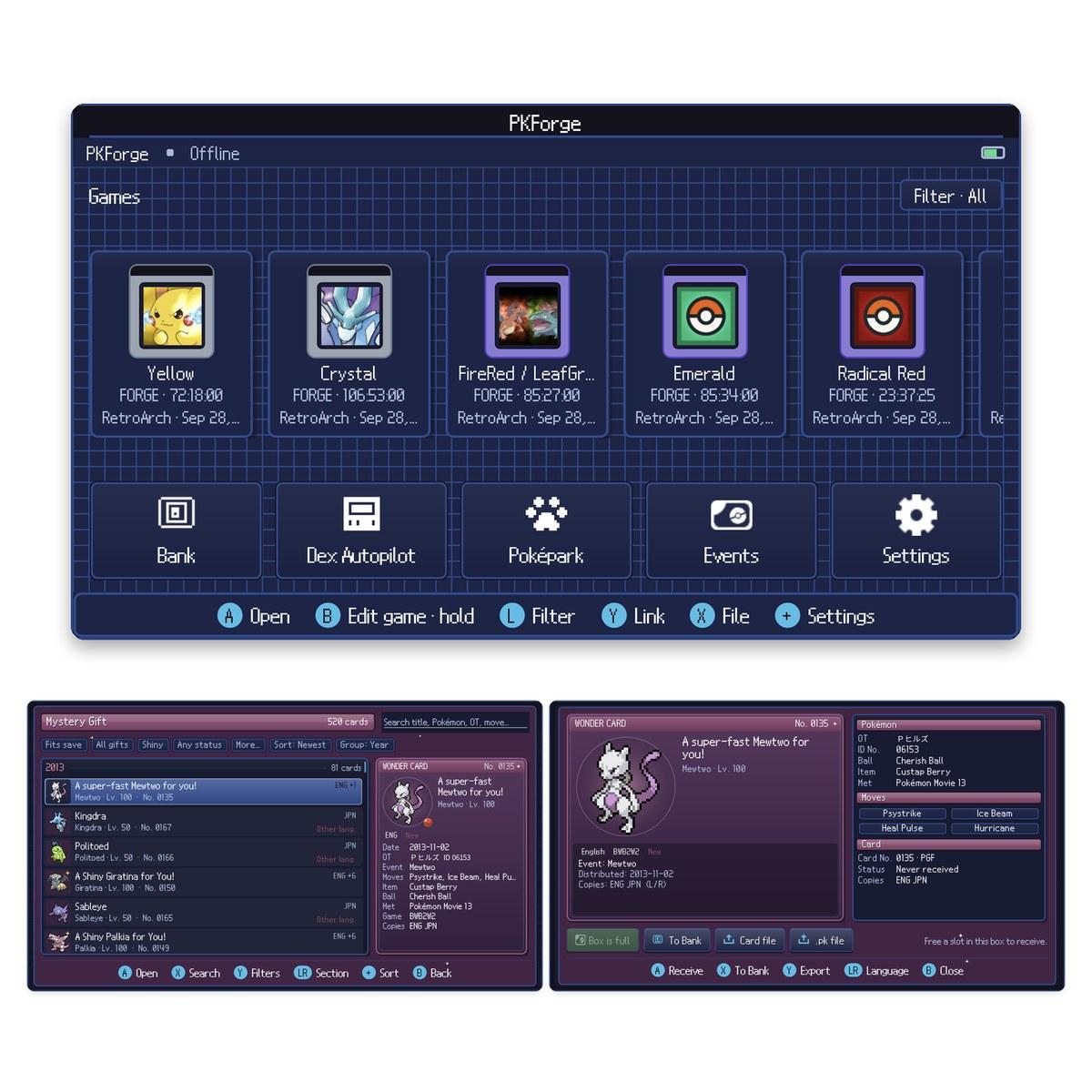
PKForge is a free Android app that runs PKHeX's engine on a handheld. You point it at your emulator's save folder, and it can edit and legalise Pokémon, move them between any two games, and keep a collection in a Bank of its own. This guide sets it up from scratch: the download, which folder to pick for each emulator, editing a Pokémon, moving one between games and undoing a mistake.
The steps follow PKForge 3.1.1, released on 16 October 2026, and the developer's PKForge wiki, both read on 3 November 2026. We have not tested it on our own hardware. The screenshots are the developer's own. For what the app is and why it has taken off, see our PKForge news story.
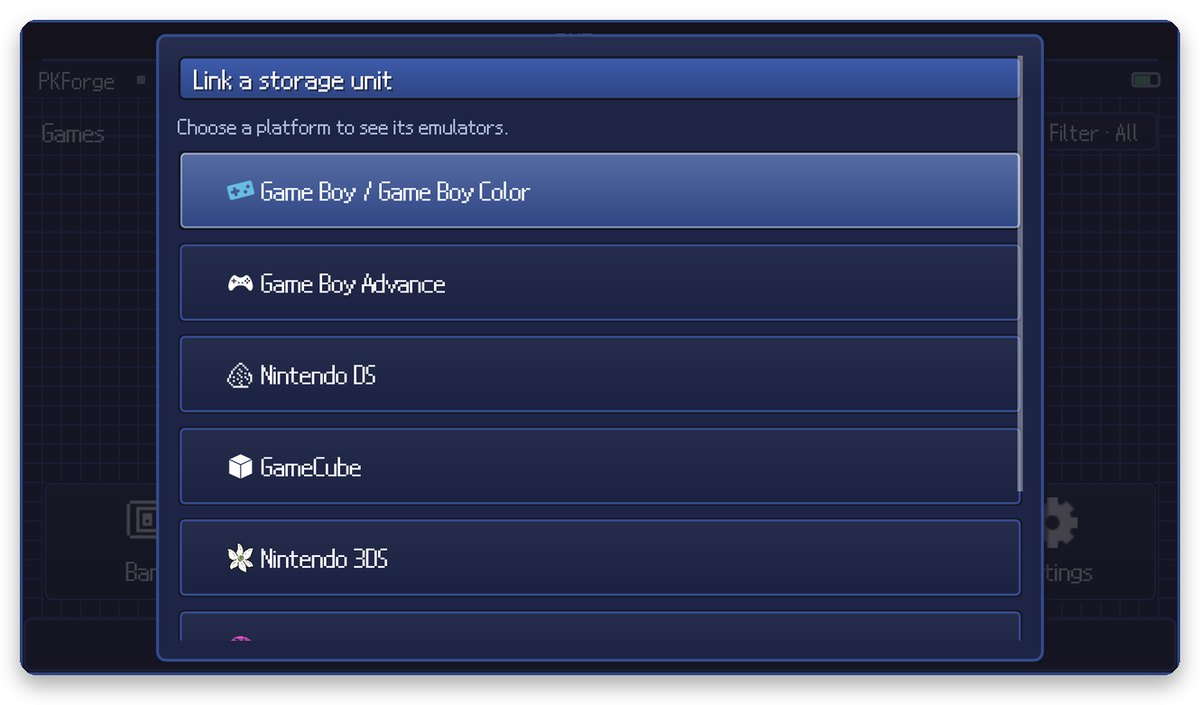
Linking starts by picking a platform. Image: PKForge wiki (GPLv3). The header shows the first-launch menu and a Pokémon Unbound save. PKForge is not affiliated with this site, Nintendo, Game Freak or The Pokémon Company.
Can you run PKHeX on Android?
Not the PC program. PKHeX is a Windows app, and running it on Android has meant a Windows compatibility layer or one of a few small ports. PKForge is an Android app built around emulator save folders and gamepad controls, with PKHeX.Core, PKHeX's own engine and legality checker, underneath.
| Option | What it is | State on 3 November 2026 |
|---|---|---|
| PKForge | Save editor and Bank built on PKHeX.Core, linked to emulator folders | 3.1.1, released 16 October 2026 |
| PKHeXMAUI | A port of the PKHeX interface to Android | Last release 8 August 2026 |
| PKHeX.Mobile | An early mobile editor from PKHeX's author | One 0.0.1 release (August 2023), no code changes since May 2024 |
PKForge's own FAQ is clear that it does not replace PKHeX on a computer: "If you edit your saves on a PC, PKHeX is the right tool." On a handheld, where your saves already live, PKForge saves you copying files back and forth.
What you need
- A 64-bit ARM Android device. Any current phone or handheld counts, including the AYN Thor, the Retroid and AYANEO lines and Anbernic's Android devices. On dual-screen handhelds the second screen shows extra detail.
- A Pokémon game already saved in game in one of the supported emulators. PKForge edits the battery save, the file the game loads when it boots normally. It never reads save states.
- About 80 MB of space for the app, plus 600 MB if you want the optional sprite pack.
- A copy of any save you care about. PKForge makes its own backups, but it keeps only the 20 most recent. Copying the save folder somewhere safe first takes a minute. Our save backup guide covers that for GBA.
No root and no internet connection are needed.
Step 1: Install PKForge from GitHub
- On the handheld, open the PKForge releases page and download the latest APK. On 3 November 2026 that was
PKForge-v3.1.1.apk, about 79 MB. - Open the file. The first time, Android asks you to allow installs from your browser or file manager; allow it.
- Launch PKForge.
Only use that GitHub page. The project's README warns that pkforgeapp.com "is not an official PKForge site" and says not to download anything from it.
Later updates are offered inside the app when you reach the home screen, or under Settings > Check for update. Installing a new APK over the old one keeps your linked folders, Bank and restore points. Xiaomi, POCO and Redmi owners had to install 3.1 by hand once, because the updater cannot handle that version on HyperOS.
Step 2: First launch and the sprite pack
A short welcome plays, then the Get started menu opens with four choices: link an emulator, open a single save file, download the sprite pack, or skip.
The sprite pack is optional. PKForge already includes the sprites it needs; the roughly 600 MB pack adds animated Showdown sprites, HOME-style renders and item icons. It downloads once from PKForge's own GitHub releases, resumes if the connection drops, and is verified before use. You can start it later from Settings > Misc > Download full sprite pack.
The controls work by touch or gamepad, and the bar at the bottom of every screen shows what each button does there:
| Button | What it does most of the time |
|---|---|
| A | Open, choose, grab |
| B | Back, cancel |
| X | Tools (in a save), File (on Home) |
| Y | Save data (in a save), Link (on Home) |
| L / R | Previous or next box or page |
| + | Menu, Settings |
| − | Multi-select |
Step 3: Link your emulator's save folder
- On Home, press Y (Link).
- Pick the platform, then your emulator.
- Read the short guidance and press Choose folder.
- In Android's folder picker, open the right folder (see the table below), press Use this folder, then Allow.
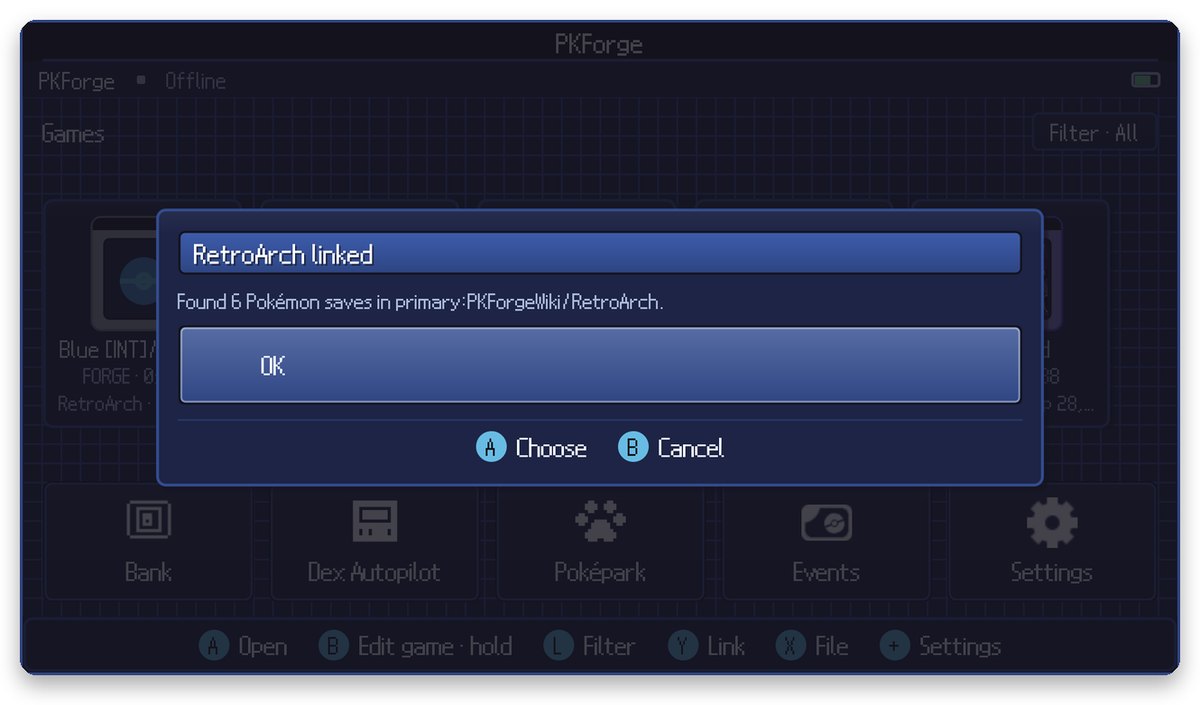
- PKForge scans it and reports how many Pokémon saves it found. They appear on the Home shelf and stay linked across restarts.
The folder is where most people go wrong. In the picker, tap the three-line menu icon at the top left to see every place you can pick from: your device's storage, plus separate entries that some emulators add for their private folders.
| Emulator | Where to look in the picker | Folder to pick | Save file |
|---|---|---|---|
| RetroArch (GB, GBC, GBA, DS) | Your device, not the RetroArch entry | RetroArch/saves, or RetroArch itself |
.srm |
| Pizza Boy A / C, Linkboy | Your device | The folder holding the .sav files |
.sav |
| melonDS | Your device | Your ROM folder (saves go next to ROMs by default) or melonDS's save folder | .sav |
| DraStic | Your device | DraStic/backup |
.dsv |
| Dolphin (GameCube) | The Dolphin Emulator entry | The top folder, or GC |
.gci |
| Azahar / Lime3DS | Your device | The user folder you chose during the emulator's setup (the one containing sdmc) |
main |
| Citra MMJ | The Citra MMJ entry | citra-emu |
main |
| Eden (Switch) | The Eden Nightly (or Eden) entry | The top level, where nand and sdmc are visible |
main, .bin |
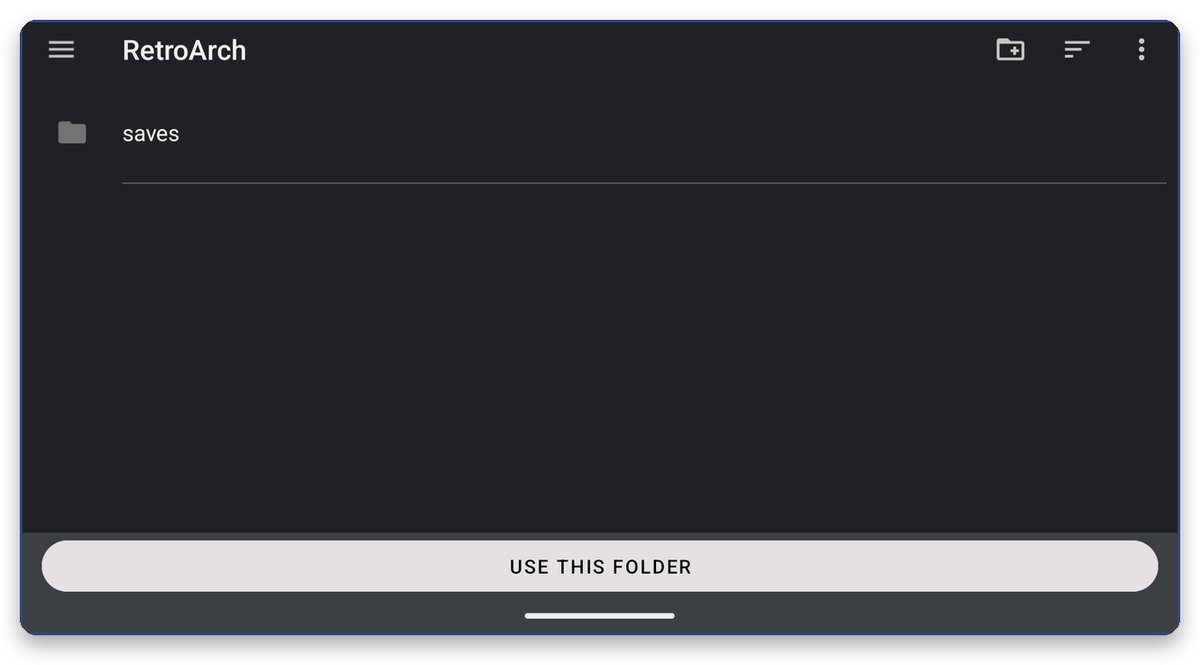
The right RetroArch folder: device storage, then RetroArch, with saves inside. Image: PKForge wiki.
Three things that trip people up, from the wiki's own list:
- RetroArch's picker entry is a trap. The "RetroArch (AArch64)" entry in the side menu opens the app's internal files (cores, shaders, assets). Your saves are not in there.
- Android will not let you pick the top of your storage or the Download folder itself. Open the folder that holds the saves and pick that.
- Some emulators keep saves in
Android/data, which newer Android versions hide from the picker. Export the save from the emulator and open it with X (File) on Home instead, then import the edited file back.
For 3DS and Switch, the saves live inside the emulator's emulated SD card or NAND and are edited in place. PKForge asks you to confirm before connecting and backs the file up before every write.
Step 4: The two rules before every edit
These two rules prevent nearly every "my changes disappeared" problem:
- Save in game, then close the emulator completely. An emulator that is still running writes its copy of the save back to the file when it closes, overwriting whatever PKForge changed.
- After editing, boot the game normally and load the in-game save. Never load a save state made before the edit, because it holds the old save and brings it back the next time the game saves.
In RetroArch, also turn off Settings > Saving > Auto Load State, or RetroArch loads a state at boot and undoes your edit for you.
Some games share a save format, so PKForge asks once which one you are playing: Ruby or Sapphire, FireRed or LeafGreen, Diamond or Pearl. You can change the answer later by pressing B on the game on the Home shelf.
Step 5: Edit and legalise a Pokémon
- Open a game from the Home shelf. Its boxes appear on the left, with the editor panel for the selected Pokémon beside them. L / R change box; the party is one of the stops.
- Move the cursor to a Pokémon. Pressing A here picks it up to move it, so go to the editor panel instead.
- In the panel, move to a field and press A to change it: species, nickname, level, friendship, shininess, nature, ability, held item, moves, IVs and EVs. Buttons below the fields open deeper editors, such as Tera type and Hyper Training under Potential.
- Press Save changes to write. Nothing is written until you do, and a restore point is taken first.
- Watch the verdict. Every Pokémon shows a Legal tick or the problem, checked by PKHeX's legality checker on the device. If it turns illegal, press Legalize in the editor panel to get the closest real, legal version. For a whole save, X > Legality check lists every problem at once.
For the full picture of one Pokémon, + > Summary opens its summary pages, and X there jumps to the editor.
The Moves page tells you, move by move, whether each one is legal and where the Pokémon learns it. HaX mode under Settings > Misc lifts every limit, but Pokémon made that way show as illegal and may not be accepted by the game.
ROM hacks get no legality verdict, because legality data only exists for official games.
Step 6: Move a Pokémon to another game through the Bank
The Bank is PKForge's own storage, separate from every save. It keeps each Pokémon's original data: a Gen 3 Pokémon stays a Gen 3 Pokémon until you send it into a game from another generation.
- In the source save, press + on the Pokémon and choose Send to Bank (moves it) or Copy to Bank (leaves the original).
- Go back to Home and open the Bank tile.
- Press + on the Pokémon, choose Send to game… and pick the destination save.
- Read the preview. It shows every change the conversion makes and whether the result is legal.
- Confirm with Send, or Send anyway if there are warnings.
You can also skip the Bank with + > Send to another game… from inside a save. Either way, close the destination game's emulator first.
How the preview handles each case:
| Transfer | Result |
|---|---|
| A forward move official games allow, such as Gen 4 to Gen 5 | A clean, legal transfer |
| A backwards move or one that loses data, such as Gen 5 to Gen 3 | Allowed, with every warning listed; the button becomes Send anyway |
| A species or item that cannot exist in the destination game | Refused, with the reason |
The Pokémon lands in the first empty slot. With Send, it is removed from the source only after the destination write succeeds. To move a whole team, use − to multi-select in a save, or Y to mark Pokémon in the Bank, then Move to another game….
Step 7: Undo a mistake with a restore point
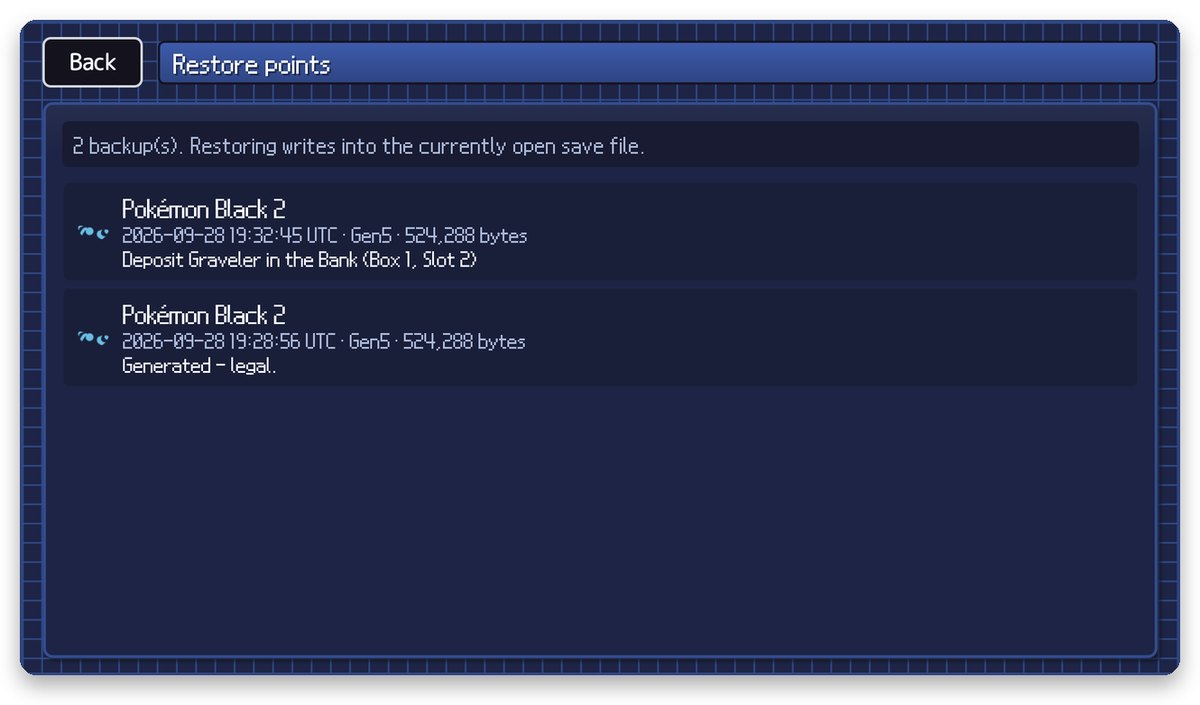
PKForge takes a restore point of the save before every write, labelled with the game, time and what the write was.
- Open the save you want to roll back. A restore always writes into the save that is open.
- Press Y (Save data) > Restore points, or go to Settings > Restore points.
- Pick the entry from before the change and confirm.
The list shows restore points for all your games together, so check the game name and time before you pick one. PKForge keeps the 20 most recent in total and saves the current state as a new restore point before restoring, so a restore can itself be undone.
Step 8: Back up your Bank
The Bank and restore points live in PKForge's private app storage. Uninstalling PKForge deletes them. Your emulator saves are unaffected, but your Bank is not.
Back it up from the Bank screen with Export > Folder of .pk files. That writes every Pokémon as a separate file that PKForge and PKHeX can both read. There is also an export to a PKSM bank file for modded 3DS consoles, though it leaves out Scarlet, Violet, Brilliant Diamond, Shining Pearl and Legends Pokémon, which PKSM cannot hold.
PKForge has no automatic or cloud backup yet. The developer suggests a sync app such as Syncthing or FolderSync pointed at the emulator's save folder.
ROM hacks
Five hacks are supported with their own species, moves and items:
| Hack | Base game | Emulator |
|---|---|---|
| Pokémon Unbound (v2.1.x) | FireRed | RetroArch, Linkboy, Pizza Boy A |
| Radical Red (v4.1) | FireRed | RetroArch, Linkboy, Pizza Boy A |
| GS Chronicles | FireRed | RetroArch, Linkboy, Pizza Boy A |
| Luminescent Platinum (v1.1, v1.3) | Brilliant Diamond | Eden |
| Pokémon Compass | Scarlet / Violet | Eden |
PKForge recognises them from the save itself, so link the folder as usual. The GBA hacks have no batch tools and are skipped by the Living Dex Autopilot.
Any other hack that changes the save format triggers an Unsupported ROM hack warning with two choices: Browse read-only or Edit at my own risk. Read-only is the safe choice. Editing an unknown layout can damage the save, and PKForge keeps layouts it knows would be corrupted read-only regardless.
If something goes wrong
| Problem | Fix |
|---|---|
| "No saves found" | Wrong folder: see the table in Step 3. Check the game has been saved in game at least once, then Settings > Misc > Rescan games |
| Still nothing | Settings > Misc > Scan report lists every file PKForge looked at and why it was accepted or rejected |
| Edits do not show up in the game | The emulator was open during the edit, or a save state was loaded. Close the emulator, edit again, boot normally |
| "Write refused… the original was not touched" | A safety check stopped the write and nothing changed; the message says which check failed |
| A write went wrong | Open the save and restore the entry from before the change (Step 7) |
| Sprites look basic | Download the sprite pack: Settings > Misc > Download full sprite pack |
| You want the second screen for an emulator | Settings > Misc > Second screen: OFF |
For anything else, Settings > Misc > Share logs builds a zip to post in the developer's Discord. It contains no save files, but it does list your save file names and trainer names.
If you are still picking a handheld to play Pokémon on, our Pokémon handheld guide compares the options, and the dual-screen handheld guide covers the devices PKForge uses best.
Frequently asked questions
- Can I use PKHeX on Android?
- Not the PC program itself, which is built for Windows. PKForge is the Android option: it runs PKHeX.Core, the same engine and legality checker, inside an app designed for touch and gamepads, and it reads your emulators' save folders directly. If you edit saves on a PC, the PKForge developer recommends PKHeX itself.
- Where do I download PKForge?
- Only from github.com/sofianeelhor/PKForge/releases, as the file PKForge-v3.1.1.apk (about 79 MB) at the time of writing. The developer warns that pkforgeapp.com is not official and that nothing should be downloaded from it.
- Why does PKForge say no saves found?
- Usually the wrong folder was picked. For RetroArch, open your device's storage and pick RetroArch/saves, not the RetroArch entry in the picker's side menu, which only holds the app's internal files. Also check that the game has been saved in game at least once, because save states are not read. Settings, Misc, Scan report shows every file PKForge looked at and why it was rejected.
- Why are my PKForge edits not showing up in the game?
- Either the emulator was still open, or a save state was loaded. Close the emulator completely before editing, because it rewrites the save from memory when it closes. After editing, boot the game normally and load the in-game save. In RetroArch, turn off Auto Load State so an old state does not load at boot.
- Can PKForge move Pokémon from Gen 3 to Gen 9?
- Yes, and back again. Send the Pokémon to the Bank, then use Send to game and pick the destination save. A preview lists every change and the legality result before anything is written. Forward moves that official games allow come out legal; backwards moves are allowed but flagged.
- How do I undo a change in PKForge?
- Open the save you want to fix, press Y for Save data, then Restore points, and pick the entry from before the change. PKForge takes a restore point before every write and keeps the 20 most recent across all your games, so check the game name and time before restoring.
- Does PKForge work with ROM hacks?
- Five have full support: Pokémon Unbound, Radical Red, GS Chronicles, Luminescent Platinum and Pokémon Compass. Hacks that keep the official save format open as their base game. Others open with an Unsupported ROM hack warning and a choice to browse read-only, which is the safe option.
 news